

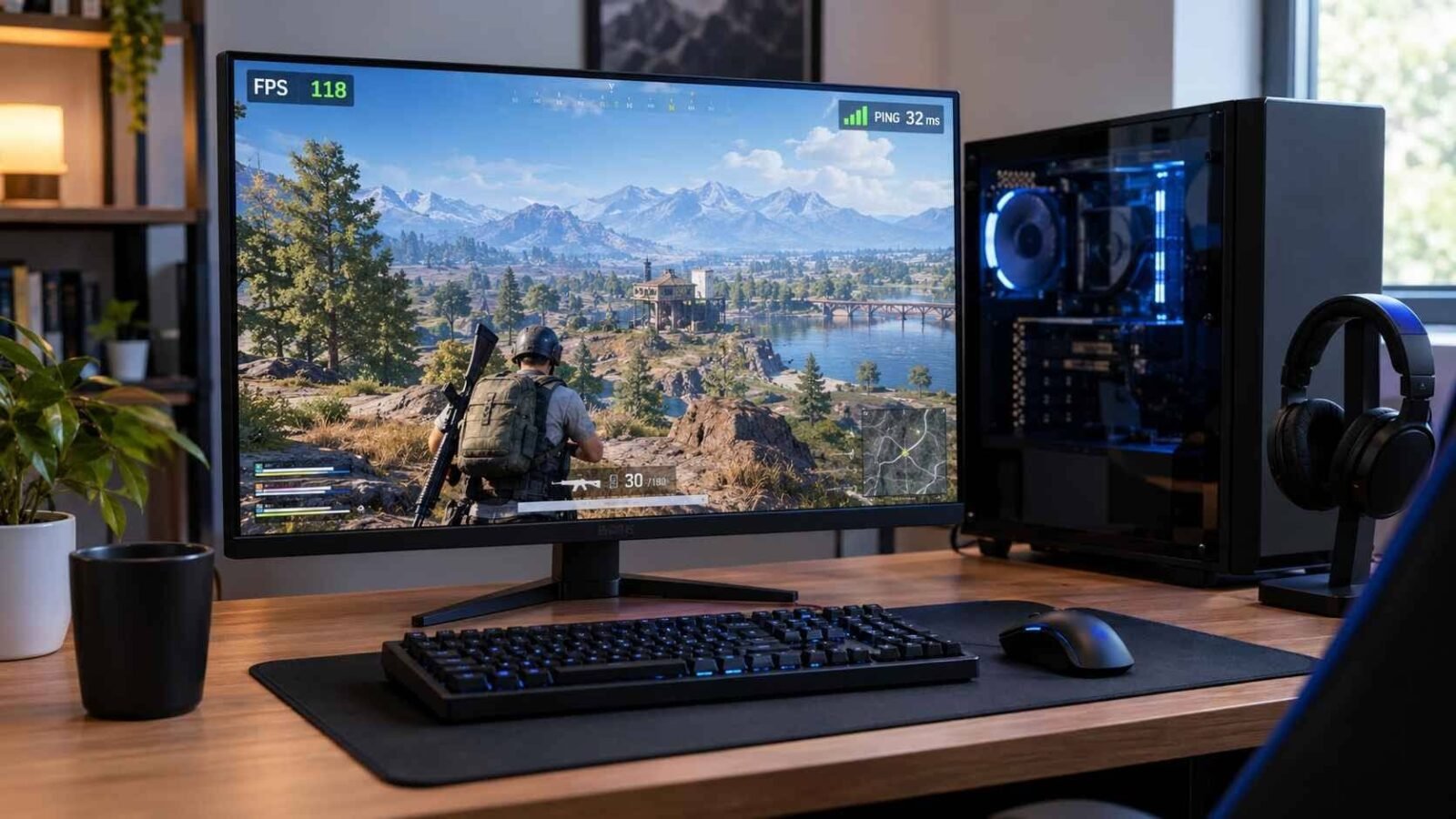
The first step is to understand that FPS and ping are different things. FPS describes how quickly your computer renders frames, while ping measures the time data takes to travel between your PC and a game server. Steam’s troubleshooting guidance also separates performance problems from network latency when diagnosing gaming issues.
Fortunately, many common problems can be addressed without immediately upgrading your hardware. A few changes to Windows, game settings, drivers, and network usage can make a noticeable difference.
Check What Is Actually Causing the Lag
Before changing settings, spend a little time identifying the problem.
If your FPS falls whenever there are many characters, effects, or objects on screen, your CPU or GPU may be reaching its limits. If the game freezes for a moment when loading areas, memory or storage performance could be involved. If everything looks smooth but other players suddenly move backward or your actions register late, network latency may be responsible.
Modern games can also suffer from frame-time spikes. A high average FPS does not always mean that gameplay will feel smooth because occasional long frames can produce visible stutters. Steam’s telemetry documentation explains that frame time can help identify these short performance hitches separately from network problems.
This is why it is better to diagnose the problem before installing tools or changing a large number of settings.
1. Check the Game’s Hardware Requirements
Every game places a different workload on a PC. A system that handles one title easily may struggle with another.
Start by comparing your processor, graphics card, RAM, and operating system with the game’s minimum and recommended requirements. Meeting the minimum specification does not necessarily mean that you will receive high FPS. Steam notes that simply meeting system requirements does not guarantee strong in-game performance.
If your hardware is below the recommended level, reducing graphics quality may help. However, software optimization cannot completely compensate for hardware that is not powerful enough for a particular game.
This is especially important with newer releases because developers can add more detailed environments, lighting, textures, and effects through updates.
2. Close Programs You Do Not Need
Background applications are one of the simplest things to check.
A browser with many tabs, video recording software, cloud synchronization, launchers, messaging applications, or large downloads can consume CPU, RAM, storage, or network bandwidth while you are playing.
Steam specifically recommends reducing unnecessary background applications when troubleshooting poor game performance.
Open Windows Task Manager with Ctrl + Shift + Esc and look at CPU, memory, disk, and network usage. You do not need to shut down every process you see. Instead, look for programs you recognize and know you are not using.
It is also worth checking startup applications. Some programs automatically launch with Windows and continue consuming resources even when you are not actively using them.
3. Update Your Graphics Drivers
Drivers are another important part of gaming performance.
Graphics card manufacturers regularly release driver updates for new games, compatibility improvements, bug fixes, and other changes. An outdated driver does not automatically mean poor FPS, but it is a sensible troubleshooting step when a game suddenly starts performing differently.
Steam recommends checking graphics and other hardware drivers when investigating performance problems.
You can normally obtain graphics drivers directly from the manufacturer of your GPU. NVIDIA, AMD, and Intel each provide their own driver-update resources.
For people who maintain several devices, manually checking every driver can become inconvenient. Smart Game Booster includes a driver-update function that can be used to check supported graphics and audio drivers. Its website also lists hardware monitoring and gaming-related maintenance features.
That does not mean a driver update will automatically increase FPS in every game. It is simply one of the maintenance steps worth checking when troubleshooting.
4. Adjust Graphics Settings Gradually
If your game is struggling, lowering every graphics setting to the lowest possible level is not always necessary.
Instead, make changes gradually.
Start with settings that place a heavier load on the GPU, such as shadows, reflections, volumetric effects, lighting quality, and resolution. Test the game after each significant change.
Resolution can have a particularly noticeable impact because rendering more pixels requires additional GPU work. Steam also recommends using an appropriate resolution and adjusting video settings when hardware cannot maintain the desired performance.
The goal should be consistent gameplay rather than simply achieving the largest FPS number.
For example, stable 90 FPS may provide a better experience than an unstable 120 FPS that frequently falls to 50 or 60 FPS.
5. Monitor Temperature During Long Gaming Sessions
Temperature is easy to overlook because a PC may perform normally during the first few minutes of a game.
After extended gameplay, however, CPU and GPU temperatures can rise. In some situations, thermal limitations can cause components to reduce their operating performance. Steam’s hardware troubleshooting information specifically identifies overheating as one possible cause of sudden CPU slowdowns and performance drops.
Make sure your computer has reasonable airflow. For desktops, check that dust is not blocking important vents. For laptops, avoid using the machine on surfaces that can block its cooling openings.
You can also monitor temperatures while playing.
Smart Game Booster provides an in-game temperature monitoring feature that can display information about components such as the CPU, GPU, memory, disk, and motherboard.
This can be useful because it gives you additional information when trying to understand why performance changes during a long gaming session.
6. Keep Enough RAM Available
Running out of available memory can contribute to stuttering and slowdowns.
Modern games can use substantial amounts of RAM, particularly when combined with browsers, recording tools, launchers, voice chat, and other applications.
Steam notes that insufficient available memory can cause game data to be moved to disk, potentially resulting in noticeable performance problems.
If your system frequently reaches high memory usage during gaming, close unnecessary applications before launching the game. If the problem occurs regularly despite having a reasonable number of applications open, your system’s RAM capacity may need further consideration.
Again, the important thing is to identify the limitation rather than assuming every FPS problem requires a new graphics card.
7. Understand the Difference Between FPS and Ping
This distinction is particularly important for competitive games.
Suppose your game displays 120 FPS but your ping suddenly increases from 30 ms to 150 ms. The game may still look visually smooth, but your actions can take longer to reach the server.
The opposite can also happen. Your ping may remain low while your FPS drops because the computer is struggling to render the game.
Steam defines ping as round-trip network latency. Higher latency means information takes longer to travel between the player’s system and the server.
So before changing graphics settings, check whether the problem is actually network-related.
8. Reduce Unnecessary Network Traffic
A busy home network can affect online gaming.
Someone watching high-resolution video, downloading large files, synchronizing cloud storage, or running another bandwidth-heavy application can compete with game traffic.
Steam recommends checking background applications that use bandwidth when troubleshooting online lag.
If possible, pause large downloads and unnecessary synchronization while playing.
A wired Ethernet connection can also be worth testing if your Wi-Fi connection is inconsistent. Wireless performance depends on distance, interference, signal quality, and the surrounding network environment.
9. Consider a Network Optimization Tool
When the basic network checks do not solve the problem, players sometimes turn to gaming network optimization software.
Smart Game Booster includes a Ping Reducer feature designed around game traffic routing. According to its official website, the software uses a network of gaming-oriented servers and routing options intended to provide more stable paths to game servers.
The usefulness of such a feature depends on your existing connection, ISP routing, physical distance to the game server, and the route available between your network and the server.
It should therefore be treated as a troubleshooting option rather than a guarantee that every player’s ping will fall by the same amount.
10. Try an FPS Booster Carefully
If the computer is capable of running the game but unnecessary background activity is affecting performance, an FPS Booster can provide a more convenient way to manage certain optimization tasks.
Smart Game Booster combines several functions in one application, including background-process management, driver updates, FPS monitoring, temperature monitoring, and other gaming-related tools.
The practical benefit is convenience. Instead of manually checking several different areas every time you prepare to play, some common maintenance tasks can be managed from the same interface.
However, an FPS Booster cannot overcome a fundamental hardware limitation. If a graphics card is simply too weak for a demanding game at a particular resolution, changing background processes will only provide limited improvement.
11. Use Windows Gaming Features Where Appropriate
Windows itself includes features that can affect how games are presented.
For example, Windows 11 has an Optimizations for windowed games setting designed to improve performance for compatible DirectX 10 and DirectX 11 games running in windowed or borderless-windowed modes. Microsoft says the feature can reduce frame latency and enable other supported display features.
The setting can be found under:
Settings → System → Display → Graphics
Not every game will benefit in the same way, so it is worth testing rather than assuming that a particular Windows setting will improve every title.
12. Do Not Change Everything at Once
One of the most useful habits when troubleshooting gaming performance is making one change at a time.
Suppose you update the graphics driver, lower resolution, close background applications, change Windows settings, and install an optimization tool simultaneously. If the game improves, you will not know which change actually helped.
A better process is:
Check → Change → Test → Compare
Record your average FPS, noticeable stutters, temperatures, and ping before making major changes. Then test again under similar conditions.
This approach makes troubleshooting much easier and reduces the chance of introducing unnecessary changes.
Where Smart Game Booster Fits In
Smart Game Booster is best viewed as a collection of gaming-maintenance and optimization tools rather than a replacement for normal PC troubleshooting.
Its official feature list includes FPS boosting, network optimization, temperature monitoring, an in-game FPS monitor, driver updating, and a system compatibility tool.
For someone who prefers managing these tasks from one application, that combination may be convenient. A player dealing with background processes can look at system optimization, while someone investigating network problems can test its network-related features separately.
The important point is that the software should be used according to the actual problem. If the game requires a more powerful GPU, no optimizer can replace that hardware. If the issue comes from an unstable Wi-Fi connection, checking the router and connection is still necessary.
Final Thoughts
Gaming performance problems usually have a specific cause, even when the symptoms look similar.
Low FPS can be connected to graphics settings, hardware capability, drivers, RAM usage, background programs, or temperature. Network lag is a different issue and can involve server distance, routing, bandwidth usage, or connection quality.
Start with the simple checks first. Confirm that your hardware meets the game’s requirements, close unnecessary applications, update drivers, monitor temperatures, and adjust graphics settings carefully. For online games, check ping and background network activity separately.
If you want a single tool for some of these tasks, Smart Game Booster provides options for system optimization, FPS monitoring, driver management, and network optimization. Its FPS Booster and Ping Reducer features can be tested according to the particular performance issue you are experiencing, rather than treating them as a universal fix.
In the end, smoother gaming is usually the result of several small improvements rather than one magic setting. Diagnose the problem first, make controlled changes, and measure the result before moving on to the next step.
FAQs
1. Why does my FPS keep dropping while gaming?
Common causes include demanding graphics settings, outdated drivers, background applications, insufficient RAM, overheating, or hardware limitations.
2. Is high ping the same as low FPS?
No. FPS relates to how your computer renders frames, while ping measures network latency between your PC and the game server.
3. Can updating drivers improve gaming performance?
It can. Updated drivers may improve compatibility, stability, and performance in some games, although results vary depending on the hardware and game.
4. Does an FPS Booster work on every PC?
The results depend on the system and the cause of the performance problem. Software optimization cannot replace hardware that does not meet a game’s requirements.
5. Can a Ping Reducer fix an unstable internet connection?
A network optimization tool may help with certain routing or latency problems, but it cannot fix every issue with Wi-Fi, an overloaded router, ISP problems, or poor physical connectivity.